

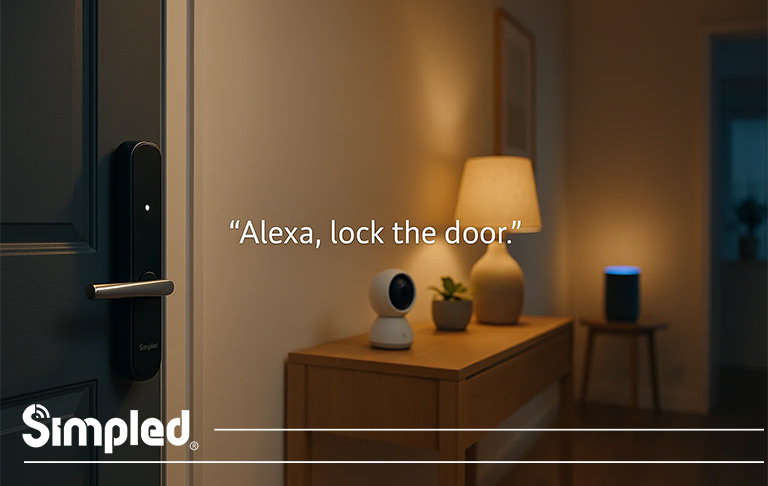
When Alexa suddenly stops responding to your voice, it can disrupt your smart home routines, voice-activated automations, and everyday convenience. Whether you’re trying to turn on lights, unlock a smart door lock, or ask for the weather, a silent Echo device quickly becomes frustrating.
The good news? Most cases of Alexa not responding to voice are caused by simple, fixable issues—far from anything serious or permanent. In this comprehensive guide, we’ll walk through the real reasons Alexa may ignore voice commands and how to fix each one step by step.
We’ll also share smart home integration tips, especially for UK homeowners using Alexa with smart locks, lighting, cameras, and other connected devices.
Why Alexa Stops Responding to Voice Commands
There are several common reasons why Alexa may not recognise or react to your voice, including:
- Microphone issues
- Wake word not detected
- Poor Wi-Fi connection
- Too much background noise
- Software glitches or outdated firmware
- Voice profile not recognised
- Hardware problems
Before diving into fixes, let’s break down how Alexa actually detects your voice.
How Alexa Voice Detection Works (And Why It Fails)
Alexa relies on three technologies:
- Far-field microphones to capture speech from across the room.
- Wake word detection (“Alexa”, “Echo”, “Computer”, etc.)
- Cloud-based processing to interpret your command and respond.
When one part fails, Alexa may not respond at all—or she may say, “Sorry, I’m having trouble understanding you.”
Here’s how those issues typically show up:
Common Symptoms
- The light ring does not activate when you say “Alexa.”
- Alexa activates but does not execute your command.
- Alexa responds with irrelevant answers.
- Alexa says she can’t connect to the internet.
- Alexa says she doesn’t recognise your voice.
Each symptom links directly to a troubleshooting path below.
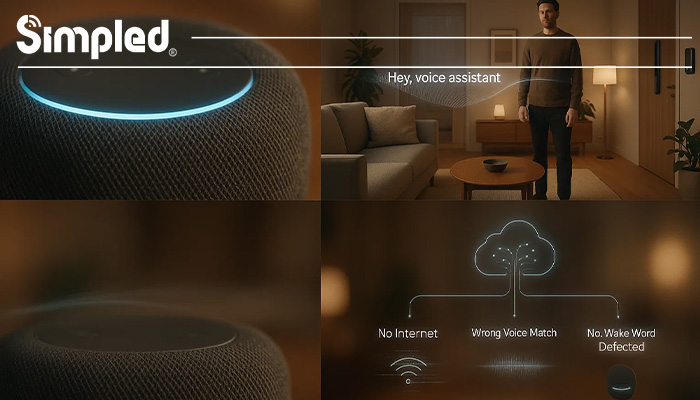
Fix 1 — Check If Alexa Heard You
Alexa will not respond if it couldn’t physically hear your command.
Step-by-Step:
- Speak clearly within 3–5 metres.
- Check whether the Echo light ring reacts:
- Blue spinning ring: Alexa is listening.
- No light: device didn’t detect your wake word.
- Move closer and reduce background noise (TV, extractor fans, music).
- Try using a different wake word via the Alexa app.
Common Mistake to Avoid
Placing Echo devices next to speakers, TVs, or windows. The microphone constantly picks up noise pollution, reducing voice accuracy.
Fix 2 — Make Sure the Microphone Isn’t Muted
This is the most frequent cause when Alexa is not responding to voice commands.
How to check:
- If the LED ring is solid red, the microphone is disabled.
- Press the mic button on top of the Echo to re-enable it.
This alone resolves nearly 30–40% of voice-related issues.
Fix 3 — Improve Wi-Fi Strength and Stability
Alexa might hear you but fail to respond because the request cannot reach Amazon’s servers.
Signs of Wi-Fi problems:
- Alexa says: “I’m having trouble connecting to the internet.”
- Delays in response
- Smart devices not responding through Alexa
Solutions:
- Restart your router.
- Move the Echo away from thick walls or electrical appliances.
- Connect your Echo to a 2.4GHz network for better range.
- Temporarily disable a VPN on your router.
UK Tip
Many UK homes have thick brick walls—Echo devices placed in hallways or near stairwells often perform better.
Fix 4 — Reset or Re-train Your Voice Profile
Alexa uses personal voice profiles to better recognise speakers.
How to re-train voice in the Alexa app:
- Go to More > Settings
- Tap Your Profile & Family
- Select Voice ID
- Choose Retrain
If multiple people live in your home, encourage each person to set up their own Voice ID. This reduces confusion and misheard commands.
Fix 5 — Update Alexa Software & Device Firmware
Outdated software can cause Alexa to ignore commands.
Check for updates:
- Simply say: “Alexa, check for software updates.”
- Ensure the Echo remains plugged in and online.
Why updates matter
New updates improve microphone recognition, reduce glitches, and add new Alexa skills.
Fix 6 — Check for Device Interference
Other appliances may interfere with Alexa’s microphone or Wi-Fi connection.
Devices that may cause issues:
- Microwaves
- Baby monitors
- Bluetooth speakers
- Wi-Fi extenders
- Cordless phones
Try repositioning the Echo at least 1–2 metres away from these devices.
Fix 7 — Restart or Factory Reset Your Echo Device
If all else fails, a basic restart resolves most glitches.
Simple restart:
- Unplug your Echo (and any hub if applicable).
- Wait 15 seconds.
- Plug back in.
Factory reset (last resort):
Used only when your Echo device has severe microphone or processing issues.
You can reset via:
Alexa App > Devices > Echo & Alexa > [Device] > Factory Reset
Fix 8 — Check if Alexa Skills or Smart Devices Are Unresponsive
Sometimes Alexa hears you and responds—but the device you’re trying to control doesn’t.
For example:
- “Alexa, unlock the front door” → Nothing happens
- “Alexa, turn on the lights” → Light skill not working
- “Alexa, show the camera feed” → Camera unavailable
Troubleshooting Steps:
- Check if the smart device is online.
- Make sure the device firmware is updated.
- Disable and re-enable its Alexa skill.
- Re-link the device to your Alexa account.
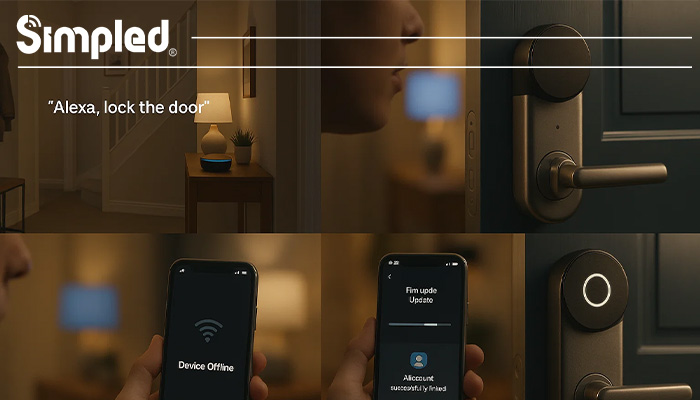
Brand example (Simpled Smart Locks)
If a user asks: “Alexa, lock the door,” and nothing happens, the issue is often related to BLE–WiFi bridging, battery power, or skill authorisation.
Fix 9 — Remove Echo Device From Groups and Reassign It
Sometimes Alexa groups override commands or cause confusion.
For example:
Saying “Alexa, turn off the lights” might trigger the wrong room if groups overlap.
Fix:
- Open the Alexa app.
- Go to Devices > Groups.
- Remove the Echo device from incorrect groups.
- Reassign it properly.
Fix 10 — Check Wake Word Sensitivity Settings
Your wake word sensitivity might be too low—or too high.
To adjust:
- Alexa App → Devices → Echo & Alexa → Wake Word Sensitivity.
Raising sensitivity helps Alexa hear you from further away.
Lowering it helps in noisy environments.
Warning Signs Your Echo Might Be Faulty (Hardware Issue)
If your Echo still doesn’t respond to voice commands after all troubleshooting, you may have a hardware problem.
Symptoms:
- Microphone doesn’t pick up sound at all
- Light ring never activates
- Persistent errors despite resets
- Device overheats
What to do:
If under warranty, Amazon usually replaces the device quickly.
How to Prevent Alexa Voice Issues in the Future
To avoid repeating issues, build long-term reliability with these habits:
1. Place Echo devices strategically
Avoid corners, behind TVs, or next to windows.
2. Keep your smart home organised
Use clear names like “Kitchen Light” or “Front Door Lock”.
3. Keep devices updated
Alexa and smart device firmware matter.
4. Use compatible, high-quality smart devices
Many issues come from cheap, unreliable accessories.
5. Use routines instead of complex commands
Automations reduce voice failures and improve consistency.
How Our Solutions Fit Into an Alexa Smart Home
Whether you’re using Alexa to control lighting, heating, or access control, your ecosystem is only as reliable as the devices inside it.
At Simpled, our BLE-based smart locks and access solutions are designed to integrate seamlessly with smart home systems—delivering reliability even when voice commands fail or Wi-Fi drops.
When Alexa does not respond to voice commands, it’s almost always caused by a simple issue—like microphone mute, weak Wi-Fi, or voice profile confusion. With the step-by-step fixes above, you can restore clear, instant voice control in just a few minutes.
Conclusion
A responsive Alexa device is essential for a smooth smart home experience—especially if you rely on it for routines, lighting, heating, or smart door locks. And when paired with high-quality devices built to UK standards, your Alexa setup becomes more reliable and secure.
If you’d like to enhance this guide with product-specific troubleshooting or integration steps for Simpled devices, just let me know.
FAQs
1. Why is Alexa not responding to my voice?
It’s usually caused by network issues, microphone problems, or Alexa not hearing you clearly. A quick reset or checking Wi-Fi often fixes it.
2. How do I fix Alexa not understanding voice commands?
Start by restarting the Echo device, checking the mic button, and improving room noise. Re-training Voice ID also helps accuracy.
3. Why does Alexa say she can’t understand me?
Background noise, unclear phrasing, or outdated software can cause this. Make sure your device is updated and placed away from noise sources.
4. Is my Alexa microphone broken?
If the light ring stays red or Alexa can’t hear anything, the mic may be muted or damaged. Unmute it or test it using the Alexa app.
5. Why is Alexa not working even though it’s online?
It might be a server issue, a skill malfunction, or a temporary glitch. Restarting the device or disabling/re-enabling a skill usually resolves it.



Leave a Reply