

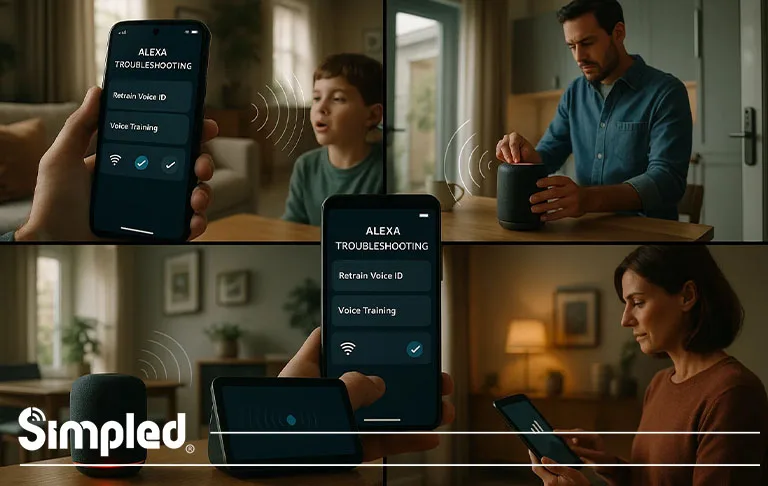
Voice assistants have become part of everyday life across UK homes, but the real magic happens when they recognise you personally. Setting up Alexa voice recognition unlocks personalised responses, tailored recommendations, and smoother smart home control—especially if you’re using connected devices like smart locks, lighting, or thermostats.
This guide walks you through how to set up Alexa voice recognition, how it works, and how to manage or improve your voice profile. Each section is designed to be clear, actionable, and beginner-friendly while still offering expert-level depth.
Why Alexa Voice Recognition Matters
Voice recognition isn’t just about convenience—it’s about creating a personalised, secure, and intelligent smart home environment. Once Alexa knows your voice, you’ll get:
- Individualised music preferences
- Personal reminders and calendar updates
- Custom calling and messaging features
- Smoother control of smart home routines
- Improved accuracy for Alexa Voice Commands
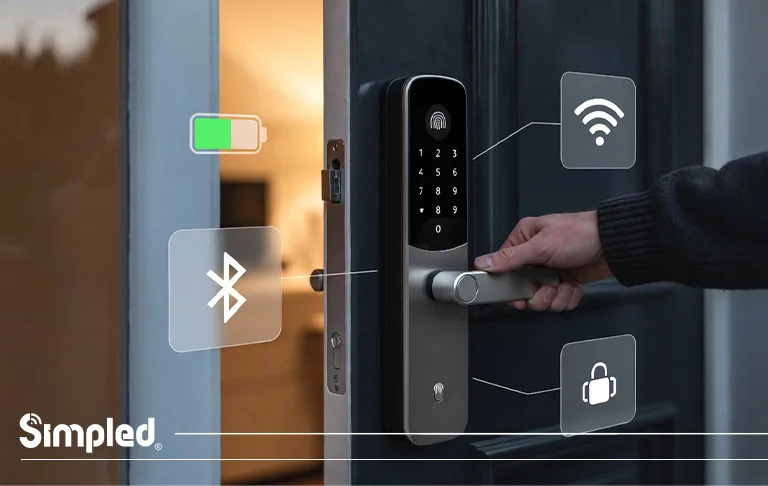
And for homes using devices like BLE-based smart locks or Wi-Fi–enabled access
(such as those at Simpled), voice recognition adds an extra layer of ease: Alexa knows exactly who is requesting a command.
How to Set Up Alexa Voice Recognition (Step-by-Step)
Step 1 — Open the Alexa App
Start by opening the Amazon Alexa app on your iOS or Android device. Make sure you’re signed in with the correct Amazon account for the household.
What to check first
- Your Echo device should be powered on.
- Your phone should be connected to the same Wi-Fi network during setup.
- Update the Alexa app to the latest version.
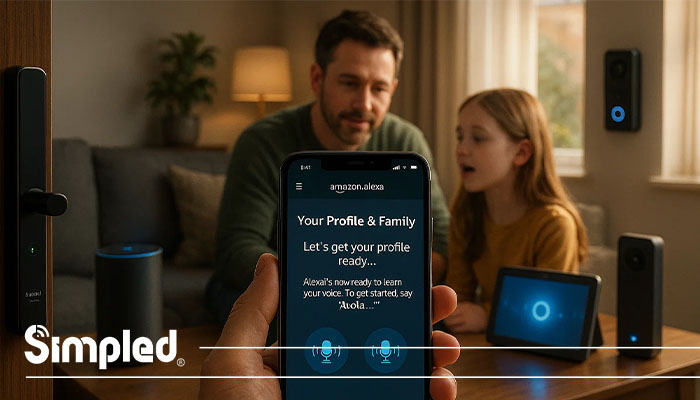
Step 2 — Navigate to “Your Profile & Family”
From the bottom menu, tap More → Settings → Your Profile & Family.
Here, Alexa displays all existing household profiles. If yours isn’t created yet, you’ll set it up from this screen.

Step 3 — Create or Update Your Voice ID
Select Voice ID and follow the prompts.
What happens during setup
Alexa will ask you to say a short series of phrases. This helps the system map your unique vocal patterns so it can recognise you later.
Pro Tips
- Speak in your natural tone.
- Avoid background noise.
- If others are nearby, ask them to stay silent during recording.
Step 4 — Train Alexa Across Your Devices
Once your Voice ID is created, Alexa may ask you to repeat a few commands on different Echo devices.
This improves:
- Recognition accuracy
- Response speed
- Personalisation
If you have multiple devices across your home—smart displays, speakers, or door cameras—training Alexa on each helps ensure consistent performance.
How Alexa Voice Recognition Works
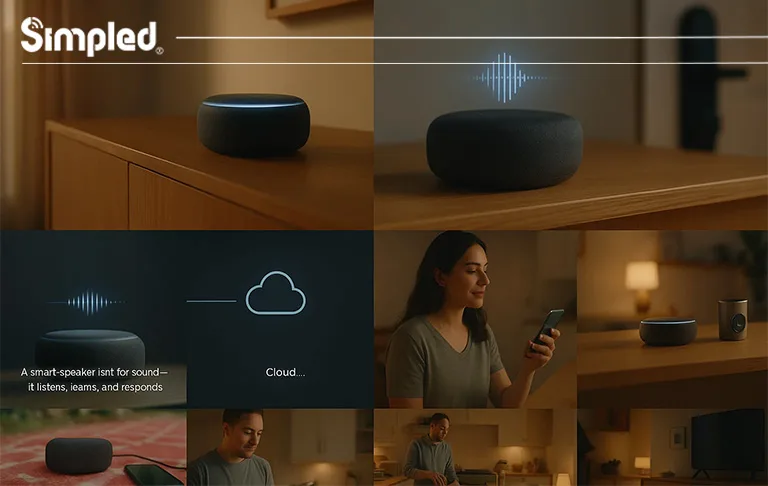
Alexa uses machine learning to analyse the pitch, rhythm, and acoustic features of your speech. It builds a voice profile, which it compares every time a command is given.
What Alexa can personalise
- Music playlists
- Calendar and traffic updates
- Messaging and calling permissions
- Shopping recommendations
- Smart home routines
Where smart locks come in
If you use a device like a Simpled smart lock with Alexa integration (bridge required for Wi-Fi connectivity), voice recognition reduces accidental triggers and makes the experience more tailored.
Managing and Editing Your Alexa Voice Profile
How to Update Your Voice ID
If your voice has changed—cold, sore throat, or a new accent—you may need to refresh your Voice ID.
To update:
- Open Alexa App → Settings → Your Profile & Family → Voice ID.
- Tap Retrain Voice.
- Repeat the training steps.
How to Delete Your Voice ID
If you need to restart completely:
Go to Your Profile & Family → Voice ID → Delete Voice ID.
Alexa will forget everything learned about your voice.
How to Add Voice Profiles for Family Members
Each person in the home can create their own profile.
Steps
- Install the Alexa app on each person’s phone.
- Sign in using their Amazon account or a Household account.
- Go to Settings → Your Profile & Family → Voice ID.
- Train their voice with the guided prompts.
This is useful for:
- Shared calendars
- Kids’ accounts
- Music preferences
- Personalised routines
Troubleshooting Alexa Voice Recognition
Alexa says, “I don’t recognise your voice”
Try these quick fixes:
- Retrain your Voice ID
- Reduce background noise
- Move closer to the Echo device
- Check if someone else’s profile is active
Alexa keeps confusing voices
Common with children or similar-sounding adults.
Solutions:
- Retrain each family member
- Reduce echo or room noise
- Use the Alexa Voice Training feature on multiple devices
Alexa isn’t responding
Check:
- Wi-Fi connection
- Microphone is enabled (light ring shouldn’t be red)
- Your Echo device’s software is updated
Smart Home Benefits with Alexa Voice Recognition
Voice recognition becomes even more valuable when paired with smart home devices. In UK homes, homeowners are combining Alexa with:
- Smart lighting
- Smart thermostats
- Security cameras
- Smart plugs
- Smart door locks
Example with Simpled Smart Locks
If a connected smart lock receives an Alexa command (via Wi-Fi bridge), voice recognition helps ensure personalised access and reduces accidental triggers.
Voice Recognition Privacy & Safety Considerations
Is Alexa Voice Recognition Secure?
Yes, but it’s not meant to replace passcodes for sensitive commands like purchasing or unlocking doors.
What Alexa Stores
Alexa stores:
- Your voice profile
- Recorded training phrases
- Speech-to-text conversions
You can delete recordings anytime
Best Practices for Using Alexa Voice Recognition
1. Train Alexa in quiet environments
Noise disrupts accuracy.
2. Repeat training if your voice changes
Seasonal illnesses can affect tone.
3. Use the correct Amazon account
Profiles must match the person’s voice.
4. Add multiple Echo devices
More devices = better recognition learning.
5. Pair with smart home routines
Example: “Alexa, I’m home”
Triggers lights, thermostat, and—if allowed—door status updates.
Conclusion
Setting up Alexa voice recognition is straightforward, but the benefits are significant: personalised responses, more accurate commands, and a seamless smart home experience. Whether you’re using Alexa for daily routines or integrating it with advanced devices like smart locks, voice recognition adds a layer of intelligence that makes your home feel truly connected.
With the steps and tips above, you can create, manage, and optimise your voice profile effortlessly—and ensure Alexa responds to you exactly the way you expect.
FAQs
1. Why should I set up Alexa voice recognition?
It personalises your experience and improves command accuracy.
2. Can Alexa recognise multiple voices?
Yes, each person can create their own voice profile.
3. How do I fix Alexa if she doesn’t recognise me?
Retrain your Voice ID in the Alexa app.
4. Does Alexa voice recognition improve smart home control?
Yes, it personalises routines and reduces command errors.
5. Can I delete my Alexa voice recordings?
You can remove them anytime from the Alexa app’s privacy settings.



Leave a Reply