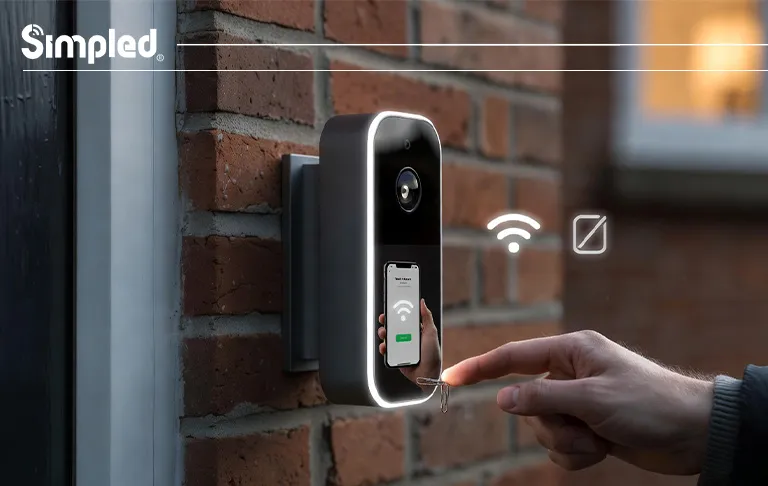
Smart doorbell cameras are designed to make life easier. They alert you when someone’s at the door, keep an eye on deliveries, and add an extra layer of security to your home.
But like any smart device, there are moments when things don’t go exactly as planned. The app won’t connect. Notifications stop arriving. The camera freezes. Or you’re moving house and need to start fresh.
That’s when knowing how to reset doorbell camera properly becomes essential.
In this guide, we’ll walk you through everything you need to know about resetting a doorbell camera, from soft resets to full factory resets, with practical tips, common mistakes, and UK-specific considerations. We’ll also share expert insights based on how modern smart doorbells—like those designed by Simpled—are actually used in real homes.
What Does Resetting a Doorbell Camera Actually Do?
Before pressing any reset button, it’s important to understand what a reset means—and what it doesn’t.
Resetting a doorbell camera usually restores it to a known, stable state. Depending on the type of reset, it may:
- Reboot the device and clear temporary glitches
- Reconnect the doorbell to Wi-Fi
- Remove the device from your app account
- Erase all settings and return it to factory condition
Think of it like restarting a smartphone versus wiping it completely. One is quick and harmless; the other is more permanent and should be done with intention.
When Should You Reset a Doorbell Camera?
Not every issue requires a reset. In fact, resetting too often can cause unnecessary setup headaches. That said, there are clear situations where a reset is the smartest move.
Common Scenarios Where a Reset Helps
- The doorbell camera shows as offline in the app
- Live video won’t load or keeps freezing
- Motion detection suddenly stops working
- Notifications no longer arrive on your phone
- You’ve changed your Wi-Fi router or password
- You’re selling the device or moving to a new property
At Simpled, we often see customers attempt rewiring or replacing hardware when a simple reset would have solved the issue in minutes.
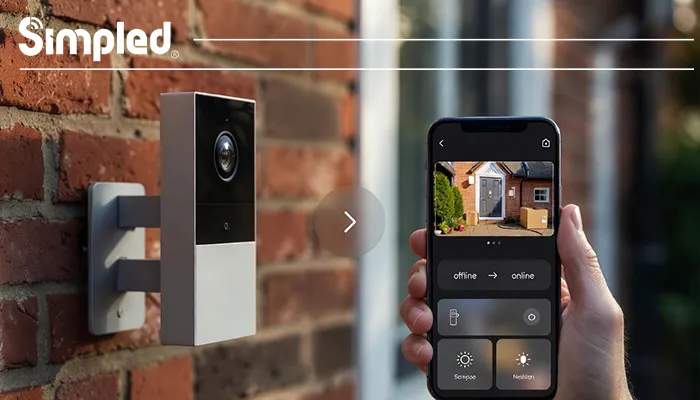
Types of Doorbell Camera Resets Explained
Not all resets are the same. Understanding the difference can save you time—and frustration.
Soft Reset (Restart)
A soft reset is essentially a reboot.
What it does:
- Clears minor software glitches
- Refreshes network connections
- Keeps all your settings intact
When to use it:
- Temporary app issues
- Laggy live view
- Short-term connection drops
This is always the first step we recommend.
Hard Reset / Factory Reset
A factory reset completely wipes the device.
What it does:
- Removes Wi-Fi credentials
- Deletes app pairing
- Restores original factory settings
When to use it:
- Persistent connection failures
- Changing owners or accounts
- Major firmware problems
- Moving the doorbell to a new home
⚠️ Important: A factory reset means you’ll need to set everything up again from scratch.
How to Reset Doorbell Camera (General Method)
While each brand has slight variations, most modern doorbell cameras follow a similar reset process.
Step-by-Step: Factory Resetting a Doorbell Camera
- Locate the reset button
Usually found:- On the back of the unit
- Under the faceplate
- Inside a small pinhole
- Ensure the doorbell has power
- Battery models: battery must be charged
- Wired models: confirm power is on
- Press and hold the reset button
- Typically 10–20 seconds
- Wait for LED indicators or audio cues
- Release and wait
- The device may reboot for 1–3 minutes
- Lights often flash to confirm reset
- Remove the device from the app
- Go to app settings
- Delete or unbind the doorbell
- Set it up again as a new device
Expert tip:
Always remove the doorbell from the app after resetting the hardware. Doing it the other way around can cause pairing errors.
How to Reset a Doorbell Camera Using the App
While each brand has slight variations, most modern doorbell cameras follow a similar reset process.
Step-by-Step: Factory Resetting a Doorbell Camera
- Locate the reset button
Usually found:- On the back of the unit
- Under the faceplate
- Inside a small pinhole
- Ensure the doorbell has power
- Battery models: battery must be charged
- Wired models: confirm power is on
- Press and hold the reset button
- Typically 10–20 seconds
- Wait for LED indicators or audio cues
- Release and wait
- The device may reboot for 1–3 minutes
- Lights often flash to confirm reset
- Remove the device from the app
- Go to app settings
- Delete or unbind the doorbell
- Set it up again as a new device
Expert tip:
Always remove the doorbell from the app after resetting the hardware. Doing it the other way around can cause pairing errors.
How to Reset a Doorbell Camera Using the App
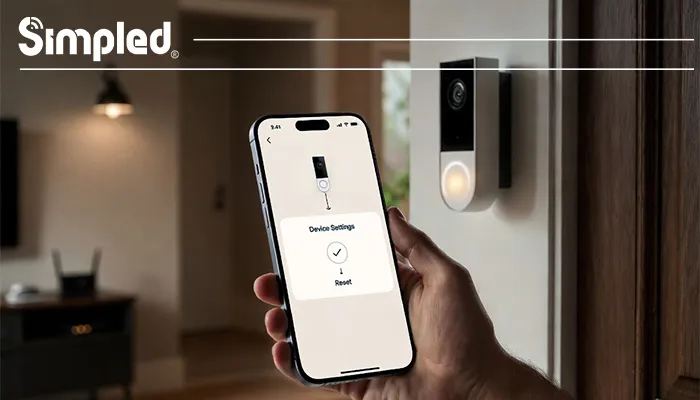
Some smart doorbells allow in-app resets, which are useful if the device is still responsive.
App-Based Reset Process
- Open the doorbell camera app
- Select your doorbell device
- Go to Settings → Device Settings → Reset
- Confirm the reset
This method is quicker, but it won’t work if the device is completely offline.
Resetting Battery-Powered vs Wired Doorbell Cameras
The power source affects how resets behave—especially in UK homes.
Resetting Battery-Powered Doorbell Cameras
Battery models are popular in flats and rental properties, but resets depend heavily on battery health.
Best practices:
- Fully charge the battery before resetting
- Clean battery contacts gently
- Reinsert the battery firmly
Common mistake:
Attempting a reset with a nearly empty battery can cause the reset to fail halfway through.
Resetting Wired Doorbell Cameras (UK Considerations)
Wired doorbells are more stable long-term, but UK electrical setups can complicate things.
Before resetting:
- Check transformer output (usually 8–24V AC)
- Turn off power at the consumer unit if inspecting wiring
- Ensure the doorbell is receiving consistent power
Older UK chimes were never designed to power video doorbells, which is why modern smart locks and doorbells—like those developed by Simpled—are engineered with efficient power management and optional battery backup.
Common Reset Problems (And How to Avoid Them)
Reset Button Not Working
Possible causes:
- Not holding long enough
- Battery too low
- Incorrect button location
Solution:
- Check the manual
- Try again with a fully powered device
Doorbell Won’t Reconnect After Reset
This is one of the most common complaints.
Checklist:
- Phone connected to 2.4GHz Wi-Fi (not 5GHz)
- Bluetooth enabled
- App permissions allowed (location, Bluetooth, notifications)
OS updates on iOS and Android often reset permissions without users realising.
Doorbell Keeps Going Offline After Reset
Likely causes:
- Weak Wi-Fi signal at the door
- Metal doors blocking signal
- Router too far from the entrance
Best practice:
A mesh system or dedicated Wi-Fi bridge dramatically improves reliability—something we factor into our smart ecosystem planning at Simpled.
Resetting a Doorbell Camera Before Selling or Moving House
If you’re handing the property to a new owner or tenant, resetting isn’t optional—it’s essential.
Pre-Handover Reset Checklist
- Factory reset the device
- Remove it from your app account
- Confirm it no longer appears online
- Leave installation screws and tools behind
This protects your privacy and ensures a smooth experience for the next user.
Why Quality Hardware Makes Resets Less Frequent
In our experience, frequent resets are often a symptom—not the real problem.
Poor power design, unstable firmware, and weak connectivity force users into constant troubleshooting. That’s why modern smart security products focus on:
- Stable BLE or low-energy communication
- Reliable firmware update processes
- Power-efficient electronics
- Clean app-device pairing
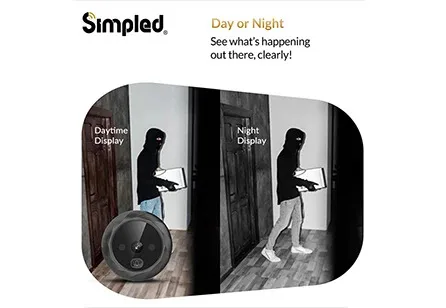
At Simpled, we design smart security products to avoid unnecessary resets in the first place—because the best reset is the one you never need. For the security of your homes, you can check out and purchase digital door viewers produced by Simpled Company.
Best Practices to Avoid Needing Frequent Resets
- Keep firmware up to date
- Use strong, stable Wi-Fi near the front door
- Avoid low-quality transformers
- Check app permissions after phone updates
- Don’t ignore battery health, even on wired models
Final Thoughts: Reset With Confidence, Not Guesswork
Knowing how to reset a doorbell camera properly gives you control. It turns frustration into a clear, manageable process.
Whether you’re dealing with a frozen feed, moving home, or setting up a doorbell for the first time, the key is understanding why you’re resetting—not just how.
Smart security should feel reassuring, not complicated. And when designed thoughtfully, it usually does.




Leave a Reply