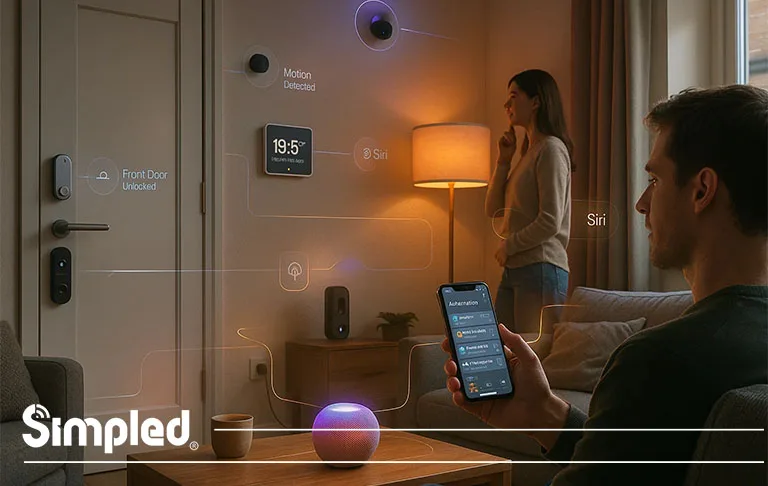
Smart homes used to feel futuristic—something reserved for tech enthusiasts with complex wiring and experimental gadgets. Today, things have changed dramatically. Apple HomeKit has made smart home control simple, secure, and incredibly user-friendly for everyday households across the UK. Whether you’re just starting to build a smart ecosystem or upgrading existing devices, knowing what smart home devices work with Apple HomeKit ensures every product integrates seamlessly and securely.
This guide breaks down the best HomeKit-compatible devices, categories, features, installation insights, and tips for building a smooth, secure home automation ecosystem. If you’re looking for reliability, privacy, and a streamlined experience across iPhone, iPad, Apple Watch, and even Apple TV—HomeKit instantly becomes the foundation.
Benefits of Building a Smart Home With Apple HomeKit
HomeKit isn’t just another automation platform—it’s one of the most privacy-focused and intuitive ecosystems available today. Unlike other platforms that gather user data for ad targeting or analytics, HomeKit prioritises encrypted communication and secure device control. This makes it the preferred choice for UK homeowners who value both smart living and strong privacy protection.
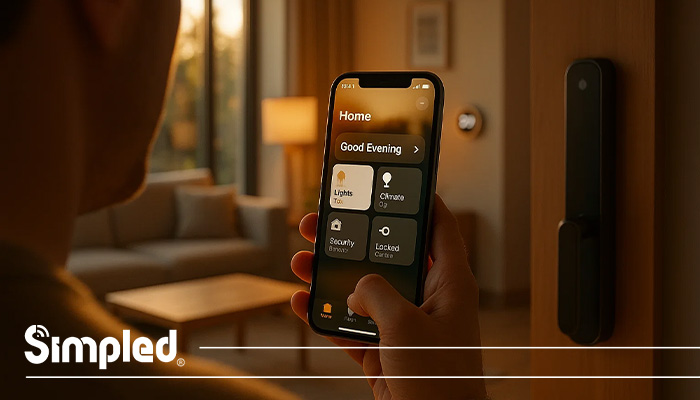
HomeKit also centralises control through the Apple Home app, meaning you don’t need multiple apps, brand-specific hubs, or complicated installations. Whether you’re adjusting your HomeKit lighting, checking your front door lock, or running an automation based on your location, everything works effortlessly together.
While smart home automation offers significant convenience and efficiency, it’s also worth understanding the potential limitations before investing in a connected ecosystem. Learn more about the disadvantages of home automation to make a well-informed decision.
What Smart Home Devices Work With Apple HomeKit?
Below is a breakdown of the categories, best options, and expert recommendations for UK homes.
1. Apple HomeKit Compatible Smart Locks (UK)
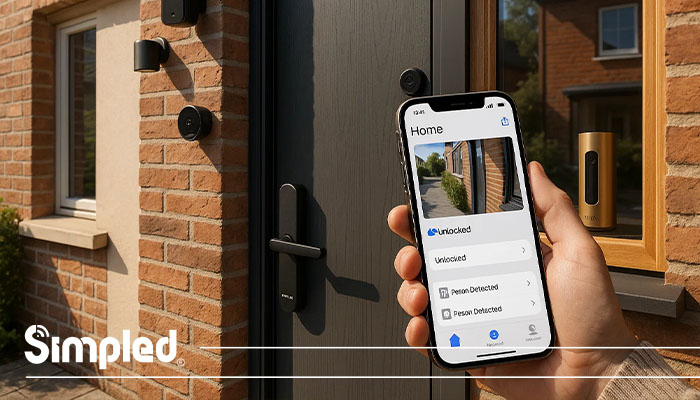
Smart locks are one of the most popular HomeKit-compatible categories, offering secure access control and remote management. With HomeKit, you can unlock your door via Siri, automate entry routines, and receive activity notifications.
Why Choose a HomeKit Smart Lock?
Remote locking/unlocking when paired with a Home Hub
- Activity logs for peace of mind
- Automations such as “Unlock when I arrive home”
- Hands-free access via Siri
- Stronger privacy and encryption vs. many third-party ecosystem
UK Notes
Because UK doors vary (Euro cylinder, multipoint, night latch), ensure your HomeKit smart lock supports British door standards. Many US models do not.
2. Smart Lights & Bulbs That Work With Apple HomeKit
Lighting is often the easiest entry point into home automation. HomeKit-compatible lights allow you to schedule routines, adjust ambience, and automate energy savings.
Top HomeKit-Compatible Lighting Brands
- Philips Hue
- Nanoleaf
- LIFX (select models)
- Eve Light Strip
- Meross Smart Bulbs
Benefits
- Control brightness and colours through Siri
- Set “Leaving home/Arriving home” lighting
- Create moods such as “Movie Night” or “Relax”
- Reduce energy waste
UK Installation Tip
If you’re pairing bulbs across multiple rooms, use Thread-enabled models for better range.
3. Smart Thermostats Compatible With Apple HomeKit
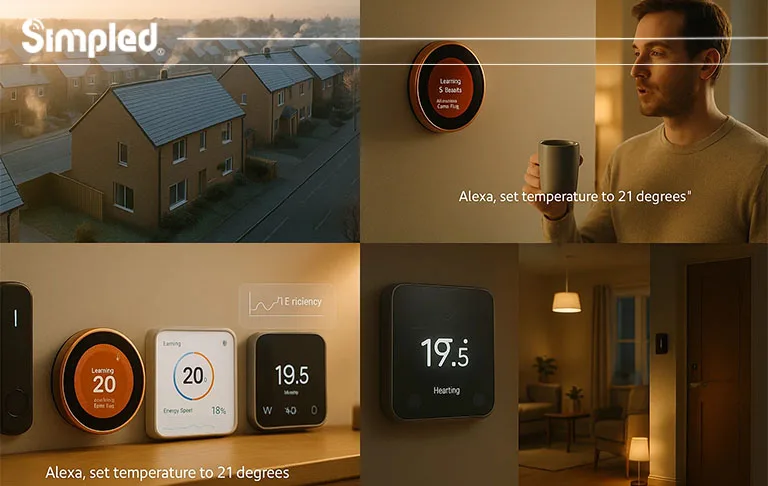
Smart heating is essential for UK homes due to energy bills and weather changes. HomeKit thermostats can help you maintain comfort while reducing costs.
Popular Options
- Tado Smart Thermostat
- Eve Thermo
- Ecobee (limited UK availability)
Why HomeKit Thermostats Matter
- Temperature routines (morning boost, night mode)
- Geofencing to avoid wasted heat
- Siri voice adjustments
- Heating insights
Case Example
A homeowner in Manchester used Tado with HomeKit automation to turn the heating down when everyone left the house. Over winter, they cut bills by 18%.
4. HomeKit Security Cameras & Video Doorbells
Security is one of the most practical HomeKit integrations. With HomeKit Secure Video (HKSV), recordings are encrypted and stored in iCloud, not on third-party servers.
Leading HomeKit Compatible Camera Brands
- Eufy (select HKSV models)
- Logitech Circle View
- Eve Outdoor Cam
- Netatmo Smart Indoor Camera
Advantages of HomeKit Secure Video
- Encrypted on-device processing
- Facial recognition using your Apple devices
- Activity zones customised inside the Home app
- No additional subscription for HKSV-supported models
5. Plugs, Switches & Home Automation Controls
HomeKit plugs give you control over appliances like lamps, kettles, heaters, and fans.
Top Brands
- Eve Energy
- Meross HomeKit Plug
- Wemo Plug
Uses
- Automate morning routines
- Track power consumption
- Turn appliances off when you leave
- Create safety protections for heaters or irons
6. Apple HomeKit Compatible Sensors (UK)
Sensors add intelligence to your home automation system. HomeKit supports a wide range of sensors for safety, efficiency, and convenience.
Common Sensor Types
- Motion sensors
- Door/window contact sensors
- Temperature/humidity sensors
- Leak/water sensors
- Air quality monitors
Recommended Brands
- Eve Room
- Aqara Sensors
- Fibaro
Smart Automation Examples
- Motion sensor → turn on hallway lights at night
- Leak sensor → alert + shut off water valve
- Temperature sensor → activate extractor fan
7. Home Hubs Required for Apple HomeKit
To unlock full HomeKit functionality (remote control, automations, HKSV), you need a Home Hub.
Accepted Apple Home Hubs
- HomePod Mini
- HomePod (2nd gen)
- Apple TV
- iPad (limited support)
Tip
HomePod Mini is the most affordable and reliable HomeKit hub thanks to Thread suppor
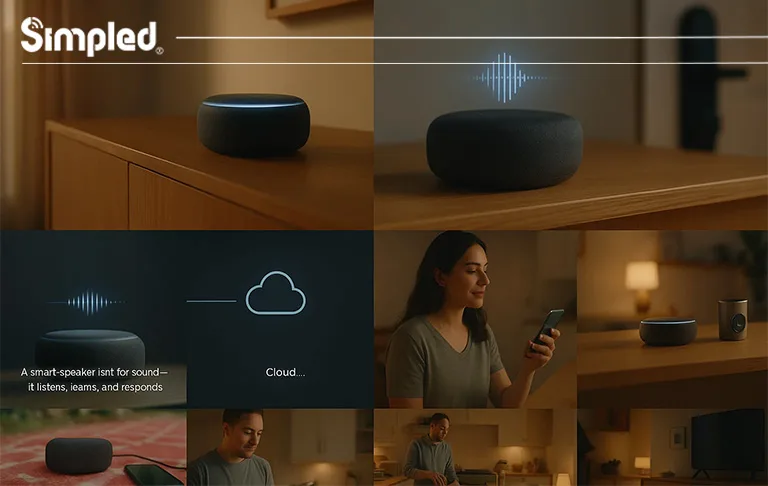
8. Smart Speakers Compatible with Apple HomeKit
Apple HomePod mini and Apple HomePod are the main smart speakers that natively support Apple HomeKit. These devices:
Act as HomeKit controllers and hubs (especially HomePod or HomePod mini), letting you control HomeKit accessories from the Home app or with Siri.
Let you manage HomeKit-compatible lights, locks, plugs, and more with voice commands like “Hey Siri.”
Can serve as a Home Hub, required for automations, remote access, and advanced HomeKit features.
9. Advanced Tips: Scenes & Automation
To truly unlock the potential of your HomeKit-integrated home, you should move beyond manual control and start using Scenes and Automations.
- Creating Custom Scenes:
Instead of locking your door and turning off lights one by one, you can group these actions into a ‘Scene’. For instance, a ‘Leaving Home’ scene can be programmed to lock your Simpled smart lock, turn off all HomeKit-enabled smart bulbs, and arm your security system with a single tap in the Home app or a Siri command like, ‘Hey Siri, I’m leaving.’- Location-Based Automations:
Using geofencing technology, you can set your home to react to your arrival. You can create an automation where your front door lock automatically unlocks (or sends you a prompt to unlock) as soon as your iPhone detects you have arrived within a certain radius of your house.- Time-Based Security:
You can automate your security by setting a ‘Goodnight’ automation. For example, you can program HomeKit to ensure the front door is locked every night at 11:00 PM, providing peace of mind without you having to check the app manually.- Sensor-Triggered Actions:
If you have other HomeKit accessories like motion sensors or smart cameras, you can set them to trigger your lock. For instance, if a motion sensor detects activity at the porch late at night, you can create a rule that ensures the smart lock is securely engaged.”
10. Building a Fully Connected Smart Home With Apple HomeKit
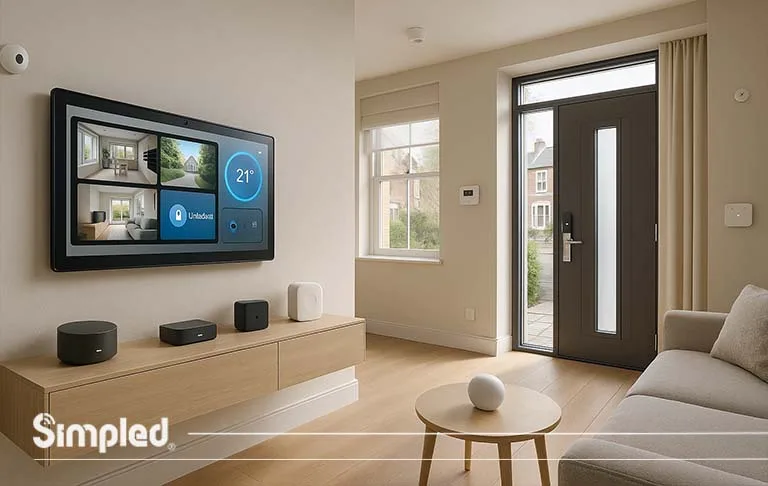
A complete HomeKit ecosystem integrates lighting, locks, cameras, thermostats, and sensors under one app. Automations become more powerful when multiple device categories work together.
Example HomeKit Automation Routine
“Away Mode”
- Locks doors
- Turns off lights
- Lowers heating
- Activates cameras
- Sends notifications if motion is detected
Where Our Brand Fits
Smart locks and access control systems—especially BLE-based solutions with optional WiFi bridges—work seamlessly in a HomeKit ecosystem.
What special features do your products have in this part?
11. Common HomeKit Issues & How to Fix Them
Device Not Responding
- Check WiFi and Home Hub
- Ensure the device supports Thread or has strong signal
- Restart router and Home Hub
Automation Not Running
- Ensure hub is online
- Check location permissions
- Recreate automation cleanly
Accessory Not Connecting
- Reset the device
- Scan HomeKit pairing code again
- Keep iPhone close during setup
12. Is Apple HomeKit Worth It for UK Homes?
Absolutely—especially for households that value privacy, reliability, and simplicity. While HomeKit devices may cost slightly more upfront than generic smart home options, the long-term performance, security, and ease of use are unmatched.
With the rise of Matter support, HomeKit is becoming even more powerful and future-proof.
Conclusion
Building a smart home with Apple HomeKit gives you the perfect blend of convenience, security, and seamless automation. From lighting and thermostats to smart locks and advanced security cameras, the ecosystem is robust, private, and ideal for UK homes.
And if you’re integrating modern access control products—sleek designs, strong security standards, and energy-efficient connectivity—HomeKit becomes even more powerful.
Let me know what product-specific features you’d like added so we can refine sections around smart locks and integrations.
FAQs
1. What devices work with Apple HomeKit?
Lights, locks, thermostats, cameras, plugs, sensors, and smart home hubs are all compatible depending on the brand.
2. Does HomeKit work in the UK?
Yes—HomeKit supports all major UK smart home categories, including lighting, heating controls, and access devices.
3. Do I need a HomePod for HomeKit?
You don’t need one for basic control, but a HomePod or Apple TV is required for automations and remote access.
4. Are smart locks compatible with Apple HomeKit?
Yes, several smart locks support HomeKit, enabling Siri control, automations, and encrypted access.
5. Is HomeKit better than Alexa or Google?
HomeKit offers stronger privacy, tighter encryption, and smoother integration with Apple devices.



Leave a Reply